
.png)
How to Hook Up a Smart TV for Any Brand: Smart TV Setup Help Guide (2026)

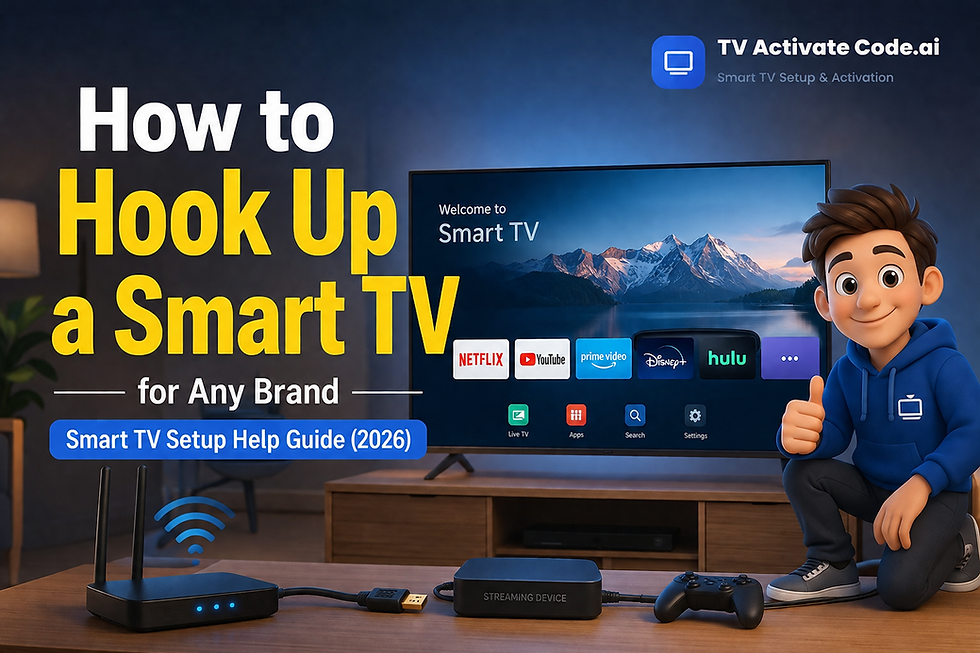
Getting a new Smart TV should be exciting, but many people get stuck during setup. From connecting to Wi-Fi to finding the right HDMI port, there are several steps that can feel confusing if you've never done it before.
The good news is that most Smart TVs follow a similar setup process, whether you own a Samsung, LG, Sony, TCL, Hisense, Vizio, Philips, Roku TV, Fire TV, or Google TV.
This Smart TV setup help guide explains everything in simple steps so you can get your TV up and running quickly.
What You Need Before Setting Up Your Smart TV
Before you begin, make sure you have:
Your Smart TV and remote control
Power cable
Home Wi-Fi password
HDMI cables (if connecting other devices)
Login details for streaming services such as Netflix, Disney+, Prime Video, or YouTube
Having these ready can save time during the setup process.
How Do You Hook Up a Smart TV?
Most Smart TVs can be set up in less than 30 minutes. Follow these steps in order.
Step 1: Plug In and Turn On the TV
Place the TV on a stable stand or wall mount and connect the power cable.
Once connected:
Turn on the TV using the remote.
Select your preferred language.
Choose your country or region when prompted.
You should now see the TV's setup screen.
Step 2: Connect Your Smart TV to Wi-Fi
A Wi-Fi connection is required for streaming apps, software updates, and many Smart TV features.
To connect:
Select your home Wi-Fi network.
Enter the Wi-Fi password.
Wait for the connection confirmation message.
If the TV cannot find your network, restart your router and try again.
Step 3: Sign In or Create a TV Account
Many Smart TVs ask you to sign in during setup.
Creating an account can help you:
Download apps
Save settings
Use voice commands
Receive software updates
If your TV allows it, you can usually skip this step and complete it later.
Step 4: Update Your Smart TV Software
One of the most common setup mistakes is skipping software updates.
To check for updates:
Open Settings.
Go to Support, Device Care, or System.
Select Software Update.
Install any available updates.
Updates often fix bugs, improve performance, and add new features.
Step 5: Connect Cable Boxes, Game Consoles, or Streaming Devices
If you use additional devices, connect them using an HDMI cable.
Common devices include:
Cable or satellite boxes
PlayStation or Xbox consoles
Roku or Fire TV streaming devices
Blu-ray players
Soundbars
After connecting a device, switch to the correct HDMI input using your TV remote.
Step 6: Install Your Favorite Streaming Apps
Most Smart TVs include an app store where you can download streaming services.
Popular apps include:
Netflix
Disney+
YouTube
Prime Video
Hulu
Apple TV
After installing an app, sign in using your account details.
Some apps may display an activation code that must be entered on another device before you can start watching.
Step 7: Adjust Your Smart TV Settings
Making a few changes to your smart TV settings can improve picture and sound quality.
For most users:
Choose Movie, Cinema, or Filmmaker Mode for picture settings.
Lower excessive sharpness settings.
Adjust brightness based on room lighting.
Enable enhanced audio options if available.
Many TVs are set to bright showroom modes by default, which may not look natural at home.
Why Won't My Smart TV Connect to Wi-Fi?
Wi-Fi issues are one of the most common reasons people search for TV setup help.
Try these fixes:
Restart the TV and router.
Double-check the Wi-Fi password.
Move the TV closer to the router.
Forget the network and reconnect.
Install any pending software updates.
If other devices can connect but the TV cannot, there may be a network or hardware issue that requires further troubleshooting.
Why Is My HDMI Device Not Showing on the TV?
If your cable box, game console, or streaming device isn't appearing on screen:
Make sure the device is powered on.
Confirm the HDMI cable is fully connected.
Select the correct HDMI input.
Try a different HDMI port.
Test another HDMI cable if available.
In many cases, the wrong input source is the cause.
Why Is My Smart TV Remote Not Working?
If the remote stops responding:
Replace the batteries.
Restart the TV.
Re-pair the remote if it uses Bluetooth.
Remove objects blocking the TV's sensor.
Many newer remotes require pairing during the first setup process.
Smart TV Setup Checklist Before You Finish
Before you start watching, make sure:
The TV turns on properly
Wi-Fi is connected
Software updates are installed
Streaming apps are working
External devices are connected
Picture and sound settings are adjusted
Streaming accounts are signed in
Completing this checklist helps prevent common setup issues later.
Frequently Asked Questions
How do you hook up a smart TV without cable?
Simply connect the TV to power and Wi-Fi, then install streaming apps. A cable subscription is not required to use a Smart TV.
Can I use a Smart TV without internet?
Yes. You can watch content from cable boxes, gaming consoles, or Blu-ray players, but streaming apps require an internet connection.
How long does it take to set up a Smart TV?
Most Smart TVs can be fully set up in 15 to 30 minutes.
Do I need an account to use a Smart TV?
Not always. However, creating an account can unlock additional features such as app downloads, voice assistants, and cloud backups.
What are the best smart TV settings for everyday use?
Movie, Cinema, or Filmmaker Mode generally provides the most balanced picture quality for regular viewing.
Final Thoughts
If you've been wondering how do you hook up a smart TV, the process is usually straightforward: connect power, join Wi-Fi, update the software, install apps, and adjust a few basic settings.
Most setup problems are caused by Wi-Fi connection issues, skipped updates, or incorrect HDMI inputs. By following the steps in this Smart TV setup help guide from Tv Activate Code, you can avoid common setup mistakes and get almost any Smart TV running smoothly in a short amount of time.
At Tv Activate Code, we regularly help users troubleshoot Smart TV setup challenges, activation issues, Wi-Fi connectivity problems, and streaming app installation, making it easier for beginners to get the most from their devices without unnecessary frustration.
Disclaimer: Tv Activate Code is an independent help website that provides setup and troubleshooting guides. We are not affiliated with, endorsed by, or sponsored by any brand, service, or device manufacturer mentioned in this article.


Comments