
.png)
How to Reset the Code on a Samsung Smart TV: Complete Setup Instructions


If your Samsung Smart TV is asking for a PIN and you cannot remember it, you usually do not need to reset the entire television. In many cases, you can reset the TV PIN using the remote control.
It is important to understand the difference between resetting the PIN and performing a factory reset. A PIN reset changes the PIN back to the default, while a factory reset removes your personal settings and returns the TV to its original configuration.
This guide provides practical Smart TV setup help for beginners who need to reset a Samsung TV code or continue configuring their television.
How to Reset a Forgotten Samsung TV PIN
For many Samsung Smart TV models, you can reset the PIN using the remote control.
Follow these steps:
Turn on your Samsung Smart TV.
Press the Volume button on the remote.
Press Volume Up (+).
Press the Return button.
Press Volume Down (-).
Press Return again.
Press Volume Up (+).
Press Return one more time.
On supported models, this procedure resets the PIN to 0000.
Samsung TV menus and reset procedures can vary depending on the model, year, region, and software version. If the sequence does not work, check the instructions for your specific TV model.
What Is the Default Samsung TV PIN?
The default PIN on many Samsung televisions is 0000.
However, 0000 may not work if the PIN was previously changed. If you purchased a used TV or another person configured the television, the existing PIN may be different.
In that situation, use the supported PIN-reset procedure rather than repeatedly guessing different numbers.
How to Change the Samsung Smart TV PIN
If you know your current PIN and simply want to create a new one, you can change it through the TV settings.
On many newer Samsung Smart TVs, the menu path is:
Home → Settings → All Settings → General & Privacy → Change PIN
Enter your existing PIN and then enter your new four-digit PIN twice when prompted.
The exact menu names can differ between Samsung TV models, so do not worry if your screen looks slightly different.
Do You Need to Factory Reset the TV?
A PIN reset and a factory reset are two different things.
If you only forgot your PIN, try resetting the PIN first. You normally do not need to erase the entire television.
A factory reset is appropriate when you want to completely start over or resolve certain persistent configuration problems.
On many newer Samsung TVs, the reset option can be found under:
Home → Settings → All Settings → General & Privacy → Reset
You may be asked to enter the TV PIN before the reset begins.
What Happens After a Factory Reset?
A factory reset can remove many of the settings and information you have saved on the television.
Depending on your model, you may need to configure:
Wi-Fi or internet connection
Samsung account
Installed applications
Streaming-service accounts
Picture settings
Sound settings
Channel settings
Parental controls
Other personalized preferences
Before performing a factory reset, make sure you know your Wi-Fi password and have access to your streaming-service login information.
PIN Reset vs. Factory Reset
Knowing which reset you actually need can save you time.
Forgot your PIN: Reset the PIN.
Want to create a new PIN: Use the Change PIN option.
Smart Hub or apps are having problems: Consider resetting Smart Hub.
Want to completely start over: Perform a factory reset.
Resetting Smart Hub is also different from resetting the entire TV. It can sign you out of accounts and remove Smart Hub applications, so use it only when appropriate.
What to Do If the PIN Reset Does Not Work
If the PIN reset procedure does not work, check the following:
Make sure the TV is switched on.
Follow each button in the correct order.
Make sure you are using the TV's remote control.
Check whether your remote has the required Volume and Return buttons.
Avoid randomly trying PIN combinations.
Check the instructions for your exact Samsung TV model.
Check whether your TV has a software update available.
Consult the TV's user manual if the menu options are different.
Samsung has different TV interfaces across generations, so a procedure that works on one model may not appear exactly the same on another.
If you still cannot reset the PIN, use Samsung's official support resources for model-specific assistance.
Common Samsung TV Setup Problems After a Reset
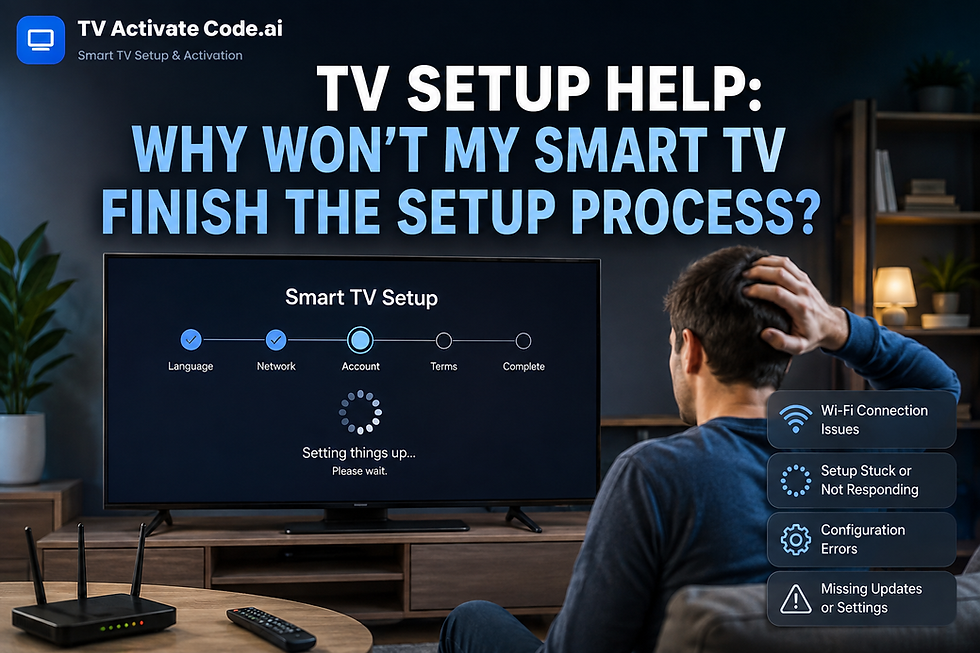
After resetting your TV, you may need additional TV setup help.
For example, the television may need to be connected to Wi-Fi again, applications may need to be downloaded again, and streaming accounts may need to be signed in.
If an app is not working after the reset, first check your internet connection. Then restart the TV and check whether an application or TV software update is available.
If you are configuring the television from scratch, take your time during the initial setup. Entering the wrong Wi-Fi password or skipping an account step can make the TV appear to have a larger problem than it actually does.
Frequently Asked Questions
What is the default PIN for a Samsung Smart TV?
The default PIN for many Samsung Smart TVs is 0000. However, this may not be the current PIN if someone previously changed it.
Does resetting the Samsung TV PIN erase everything?
No. Resetting the PIN is different from performing a factory reset. A factory reset can remove personal settings, accounts, applications, and other saved configuration information.
Why does my Samsung TV have different settings?
Samsung changes its menu layout depending on the TV model, manufacturing year, region, and software version. Your settings may therefore look different from instructions written for another model.
Should I factory reset my TV if I forgot the PIN?
Usually, no. Try the supported PIN-reset procedure first. A factory reset should be used when you actually want to erase the TV's configuration.
What should I do after resetting my Samsung TV?
Reconnect the TV to the internet, sign in to your required accounts, reinstall applications if necessary, and configure your preferred picture, sound, and other settings.
Continue With Samsung TV Setup
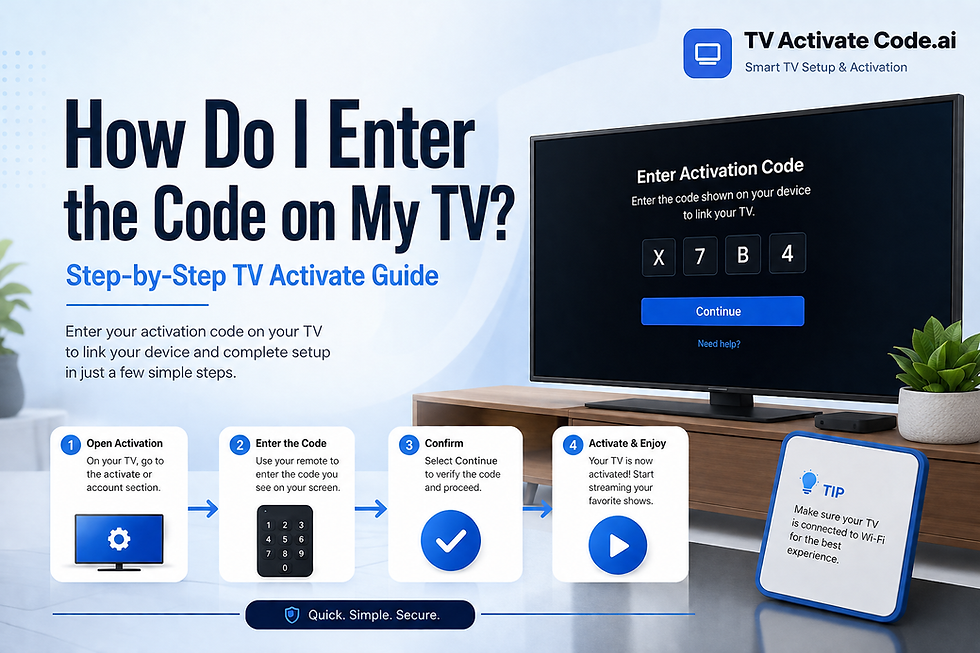
Resetting the PIN is often only the first step. If you need additional TV configuration help, you may also need assistance with Wi-Fi setup, application installation, activation codes, streaming services, or other Smart TV problems.
Explore related setup, activation, and troubleshooting guides on Tv Activate Code.ai to continue configuring your television.
Disclaimer
Tv Activate Code is an independent help website that provides setup and troubleshooting guides. We are not affiliated with, endorsed by, or sponsored by any brand, service, or device manufacturer mentioned in this article.

Comments