
.png)
Smart TV Setup Help: How Do I Set Up My Samsung Smart TV for the First Time and 5 Things to Do Next?

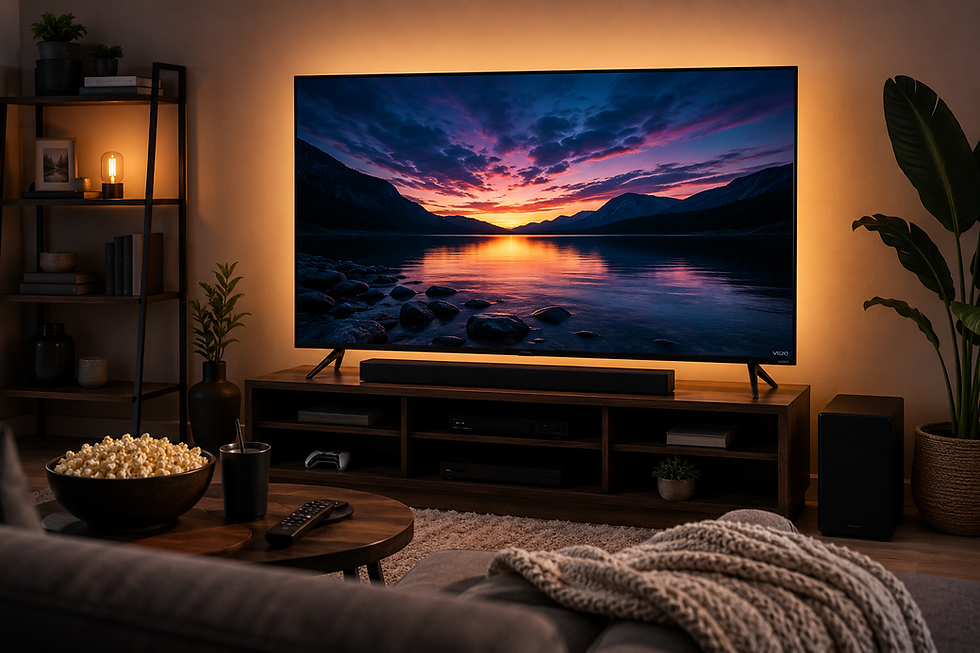
Setting up a new Samsung Smart TV for the first time can feel confusing, especially if you are not familiar with smart devices. The good news is that the process is usually simple when completed step by step.
A proper samsung smart tv setup helps you connect to the internet, access streaming apps, adjust picture quality, and avoid common problems later.
This guide explains the complete first-time setup process and the five important things you should do after turning on your new TV.
Disclaimer: Tv Activate Code is an independent help website that provides setup and troubleshooting guides. We are not affiliated with, endorsed by, or sponsored by Samsung or any other brand, service, or device manufacturer mentioned in this article.
Quick Answer: How Do I Set Up My Samsung Smart TV for the First Time?
To set up a Samsung Smart TV, connect the power cable, insert batteries into the remote, select your language and region, connect the TV to Wi-Fi, sign in to your Samsung account, install updates, and adjust basic picture and sound settings. Completing these steps ensures smoother streaming and a better viewing experience.
How to Set Up a Samsung Smart TV for the First Time
A first-time setup guides you through the essential settings your TV needs. Follow these steps carefully to avoid skipping important options.
1. Connect Your TV and Prepare the Remote
Start by connecting your TV to power and turning it on.
Before beginning:
Insert fresh batteries into the remote
Remove any protective packaging
Make sure the remote can control the TV
If the remote does not respond, try replacing the batteries or restarting the TV before continuing.
2. Choose Language and Region Settings
The TV will ask you to select your preferred language and location.
These settings affect:
Available apps
Content recommendations
Time zone settings
Regional features
Choosing the correct region helps your TV provide more accurate services.
3. Connect Your Samsung Smart TV to Wi-Fi
A stable internet connection is one of the most important parts of a samsung smart tv setup.
During this step:
Select your home Wi-Fi network
Enter your Wi-Fi password
Wait for the connection test to complete
A weak connection may cause:
Streaming interruptions
Slow app loading
Software update problems
If your TV cannot connect, restart your router and try again.
4. Sign In or Create a Samsung Account
A Samsung account allows you to use smart features and download apps.
You may need it for:
Installing applications
Managing smart features
Accessing certain services
If you do not want to create an account immediately, some setup options may allow you to continue without signing in.
5. Install Updates and Complete Setup
After connecting your TV, check for software updates.
Updates can improve:
System performance
App compatibility
Security features
Avoid turning off the TV during an update because it may interrupt the process.
5 Things to Do Right After Setting Up Your Samsung Smart TV
Completing setup is only the first step. These adjustments can improve your daily experience.
1. Check for Software Updates
A new TV may not have the latest software installed.
Go to your TV settings and check for updates.
Why it matters:
Fixes known issues
Improves app performance
Keeps smart features working properly
2. Adjust Picture Settings
Default picture settings are designed for general use, but they may not look ideal in your room.
Consider adjusting:
Brightness
Contrast
Picture mode
Motion settings
For example, a brighter room may need different settings than a dark bedroom.
3. Set Up Your Favorite Streaming Apps
After your samsung smart tv setup is complete, install the apps you use most.
Examples:
Streaming platforms
Music apps
News applications
Remove unused apps if your TV feels cluttered.
4. Configure Sound Settings
Your TV’s default audio settings may not match your room.
You can adjust:
Sound mode
Volume levels
Audio output settings
If you use a soundbar, confirm that the correct audio output is selected.
5. Review Privacy and Smart Features
Many smart TVs include features that collect usage information to improve recommendations.
Review your settings and choose options that match your preferences.
Understanding these settings gives you more control over your viewing experience.
Common Samsung Smart TV Setup Problems and Fixes
Even with simple instructions, users often experience setup issues.
Samsung TV Not Connecting to Wi-Fi
Why It Happens:
Incorrect Wi-Fi password
Weak signal
Router connection problem
Try This:
Restart your router
Move the router closer if possible
Re-enter your Wi-Fi password carefully
Restart your TV
A stable connection is important for streaming and app updates.
Remote Not Working During Setup
Why It Happens:
Weak batteries
Remote pairing issue
Temporary software problem
Try This:
Replace the batteries
Restart the TV
Pair the remote again if required
Many remote issues are solved with a simple restart.
Apps Are Not Loading After Setup
Possible Causes:
Internet connection problem
Outdated software
App login issue
Solutions:
Check your network connection
Update your TV software
Restart the app
Sign in again
Setup Screen Freezes or Does Not Continue
Why It Happens:
Sometimes temporary system errors prevent the setup process from moving forward.
Try:
Turning the TV off and on
Disconnecting power for a few minutes
Starting the setup process again
If the problem continues, manufacturer support may be needed.
Common Mistakes to Avoid During Samsung Smart TV Setup
Many beginners make small mistakes that create problems later.
Skipping Software Updates
Some users start using apps immediately without updating the TV.
Why avoid it:Older software can cause compatibility issues.
Using Weak Wi-Fi
A TV may connect successfully but still struggle with streaming.
Better approach:Use a stronger network connection whenever possible.
Ignoring Picture and Sound Settings
Many people keep default settings without checking them.
Why avoid it:Your room conditions may require different adjustments.
Installing Too Many Apps
Too many unused apps can make navigation harder.
Install only the services you actually use.
How Smart TV Setup Help Can Make Configuration Easier
For beginners, understanding every setting can take time. Smart tv setup help resources can make the process easier by explaining Wi-Fi connections, app setup, remote pairing, and basic configuration steps.
Good setup guidance helps users:
Complete installation correctly
Avoid common mistakes
Improve streaming performance
Understand important TV features
When you need Tv setup help or Tv configuration help, step-by-step troubleshooting information can save time and reduce confusion.
Frequently Asked Questions
How do I set up my Samsung Smart TV for the first time?
Connect the TV to power, select language and region, connect to Wi-Fi, sign in to your account, update software, and adjust settings.
Why is my Samsung Smart TV not connecting to Wi-Fi?
Check your password, restart your router, and make sure your TV has a strong network signal.
What should I do first after buying a Samsung Smart TV?
Install updates, adjust picture settings, configure sound, and install your preferred apps.
How do I improve my Samsung TV picture quality?
Adjust picture mode, brightness, contrast, and motion settings based on your room lighting.
Why are my Samsung TV apps not working?
Apps may stop working because of internet issues, outdated software, or account problems. Restarting and updating usually helps.
How do I find my Roku TV activation code?
The Roku activation code appears on your TV screen during the Roku setup process. Follow the on-screen instructions to connect your account.
How do I find my 4 digit code for Roku?
The Roku 4-digit code is usually displayed during activation or account linking. If you do not see it, restart the setup process.
How do I activate a Roku TV for free?
Roku activation does not require a separate activation fee. You only need to complete the account setup and follow the instructions shown on your TV.
How do I fix my Roku activation link expired?
Request a new activation link and make sure you use the latest email link. Avoid using old links from previous setup attempts.
Conclusion
Setting up a Samsung Smart TV for the first time becomes easier when you complete each step carefully. Connecting Wi-Fi, updating software, adjusting settings, and organizing apps can help you get a smoother viewing experience.
Remember these key steps:
Complete the initial setup carefully
Use a stable internet connection
Install updates
Adjust picture and sound settings
Fix common issues before they affect daily use
For more step-by-step setup, activation, and troubleshooting guides, explore the helpful resources available through Tv Activate Code.


Comments